
Control Panel
You can manage your server's files in the browser with the Files page, or with an SFTP app for big uploads like worlds and modpacks.
The file manager
Open your server and choose Files.
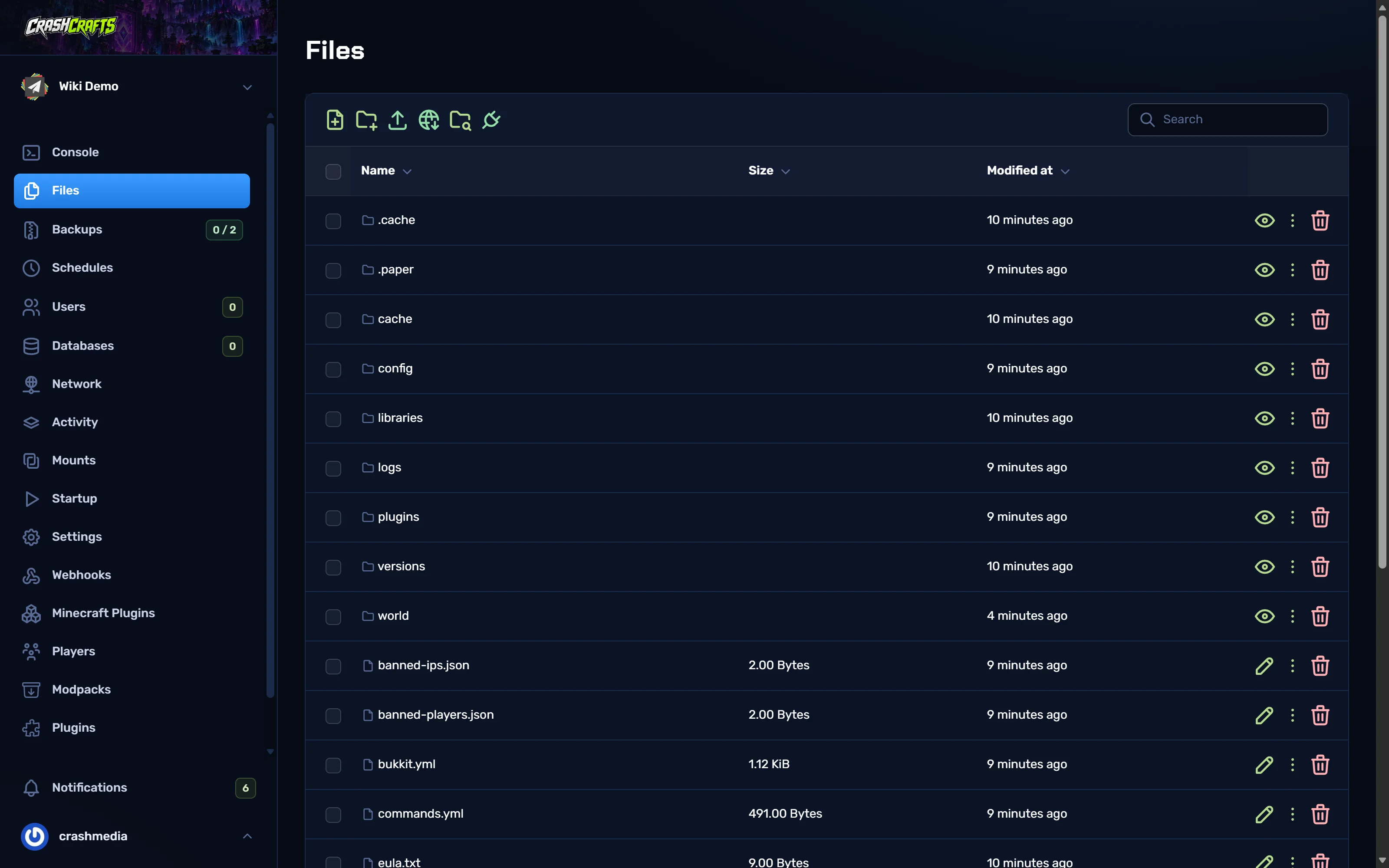
The icons above the list are, from left to right:
| Icon | Does |
|---|---|
| New file | Create an empty file and open it in the editor. |
| New folder | Create a folder. |
| Upload | Upload files from your computer (best for files under about 100 MB). |
| Pull from URL | Download a file straight onto the server from a web link. Great for plugin and mod jars. |
| Search | Find files by name. |
| SFTP | Open your SFTP details. |
Each row has a view/edit icon, a ⋮ menu (rename, move, copy, compress, extract, download, permissions) and a delete icon. Tick several rows to move, compress or delete them together.
Common folders
| Folder / file | What's in it |
|---|---|
world, world_nether, world_the_end |
Your worlds. On Fabric and vanilla, all three dimensions are inside world. |
plugins |
Paper/Purpur plugins (.jar) and their config folders. |
mods |
Fabric/NeoForge/Forge mods (.jar). |
config |
Server-wide configs: Paper's paper-global.yml, and most mod configs. |
logs |
latest.log and older logs. |
server.properties |
The main Minecraft settings. See server.properties explained. |
ops.json, whitelist.json, banned-players.json |
Operators, whitelist and bans. |
Edit a file
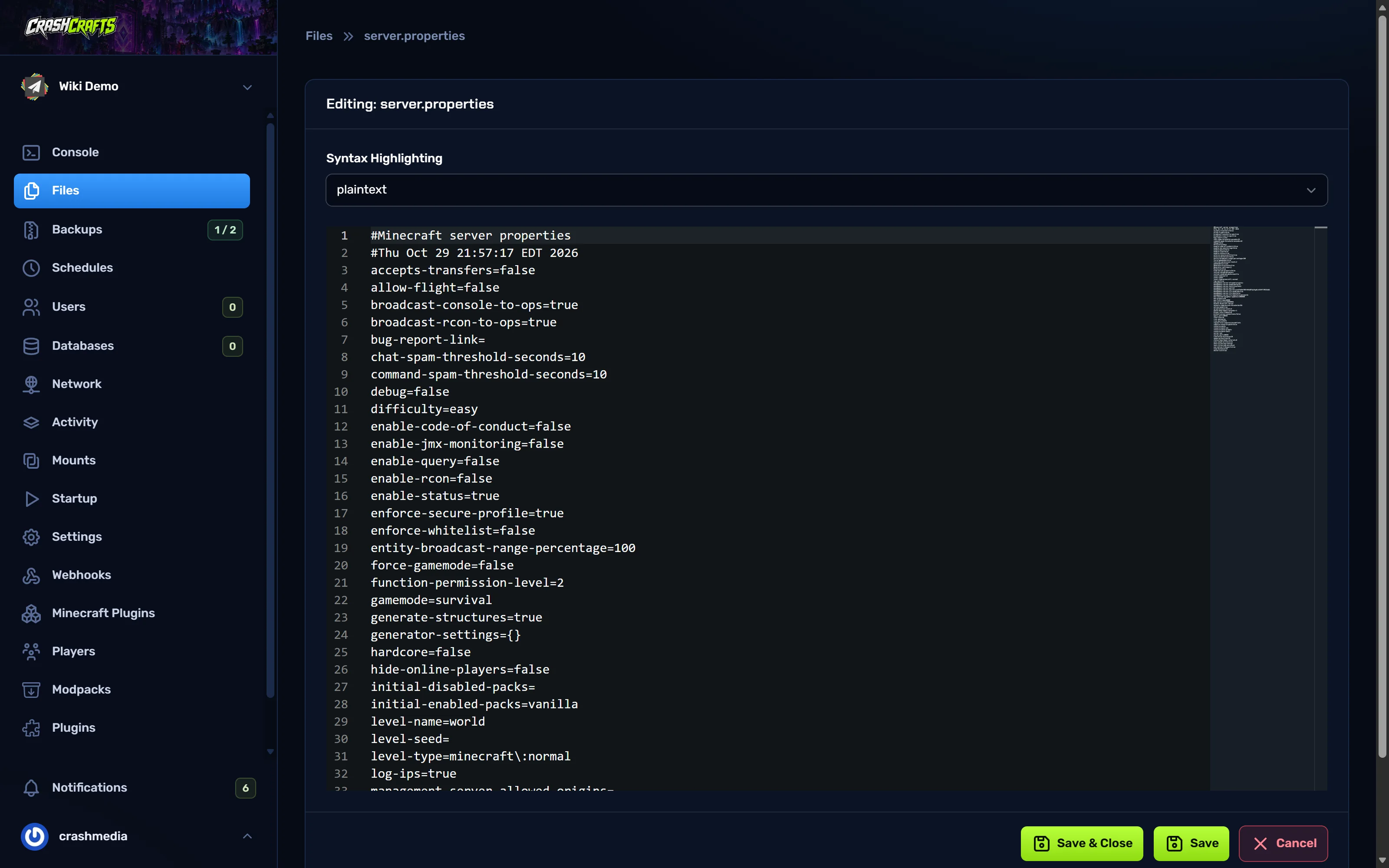
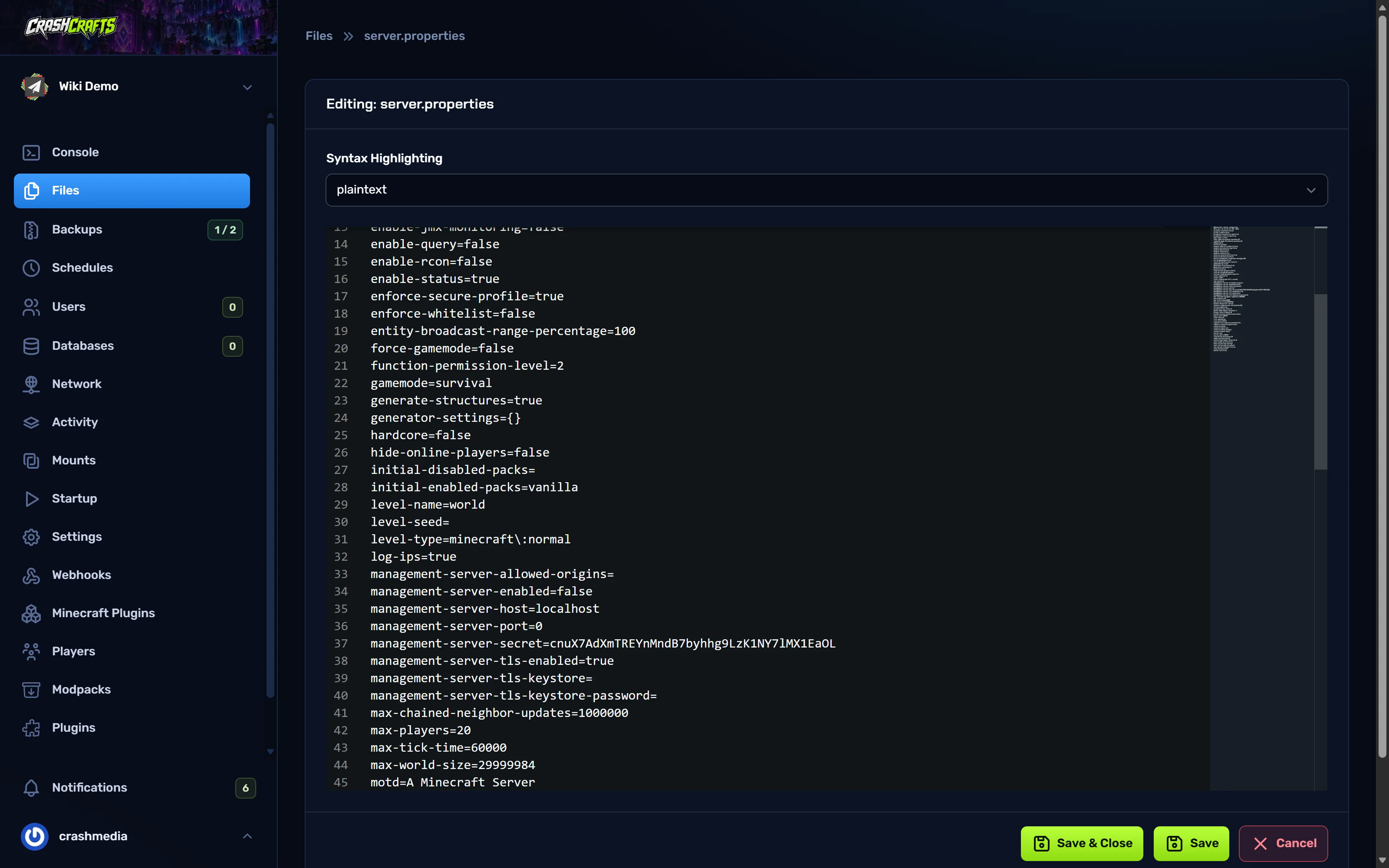
- Choose a file's name (or its edit icon). It opens in the editor.
- Make your change. The Syntax Highlighting box above the editor colours the text by file type (e.g. YAML for
.ymlfiles), which makes mistakes easier to spot. - Choose Save (stay in the editor) or Save & Close.
- Restart the server so it reads the change. Most configs are only read at start-up.
Upload large files: connect with SFTP
For worlds, modpacks and anything over about 100 MB, use an SFTP app. It's faster, can resume, and has no size limit.
In the panel go to Settings and find SFTP Information.
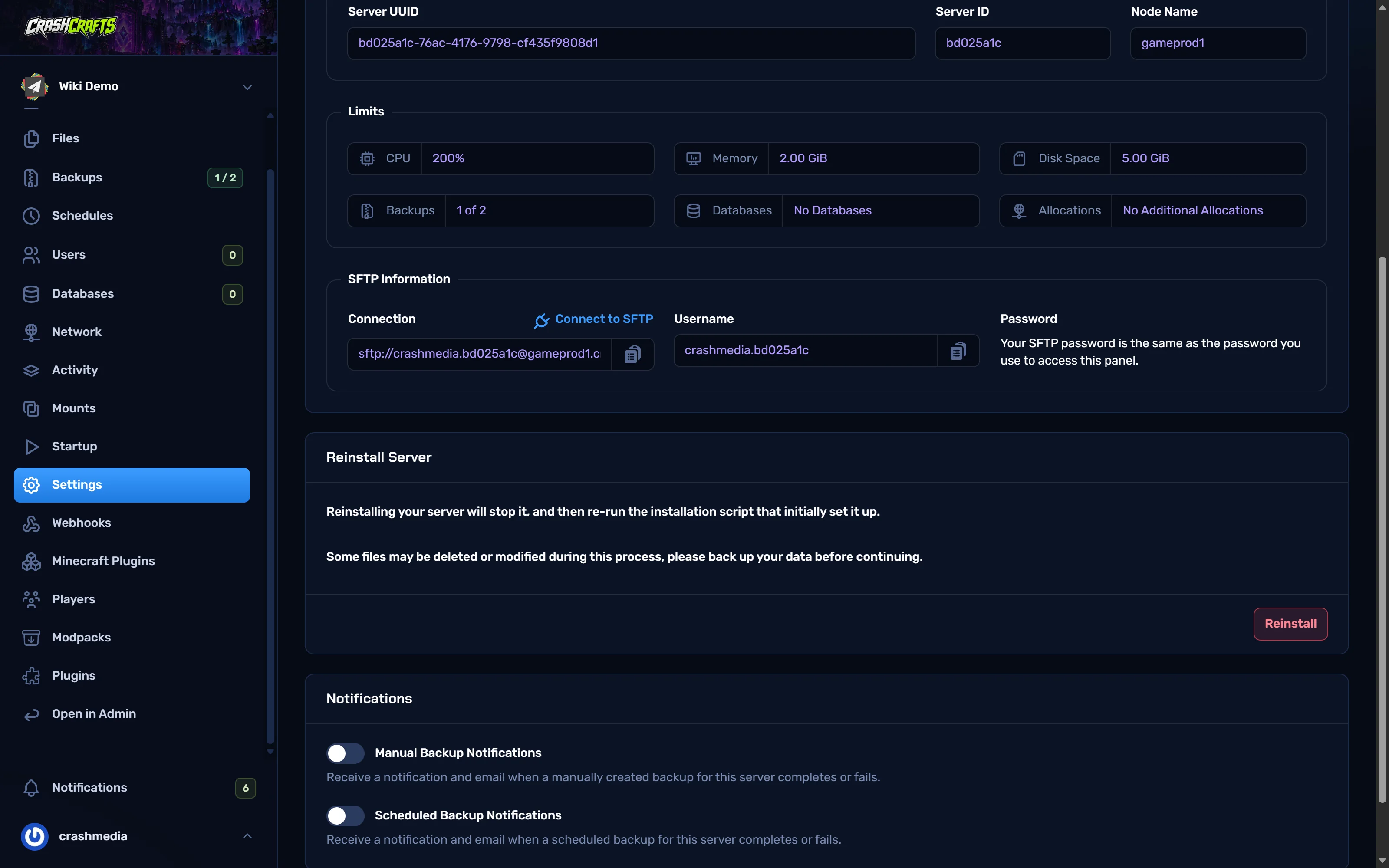
SFTP details on the Settings page Note the details. They look like this:
| Setting | Value | |---|---| | Host |
gameprod1.crashcrafts.com| | Port |2022| | Username |yourpanelname.serverid, e.g.crashmedia.bd025a1c| | Password | The same password you use to sign in to the panel |Install an SFTP app: WinSCP (Windows) or FileZilla (Windows, Mac, Linux).
WinSCP: New Site → File protocol: SFTP, Host name, Port number, User name, Password → Login. FileZilla: File → Site Manager → New site → Protocol: SFTP, Host, Port, Logon Type: Normal, User, Password → Connect.
Accept the server's host key the first time. Your server's files appear on the right; drag files across.
Upload a world
- Stop the server.
- In Files, rename the current
worldfolder toworld-old(or make a backup). - Upload your world folder with SFTP, or upload a
.zipin the file manager and use ⋮ → Extract. - Make sure the folder is named to match
level-nameinserver.properties(normallyworld), and thatlevel.datis directly inside it, not in a sub-folder. - Start the server.