
Getting Started
The Console page is where you control your server: start, stop and restart it, watch the live log, and type commands as if you were the server operator.
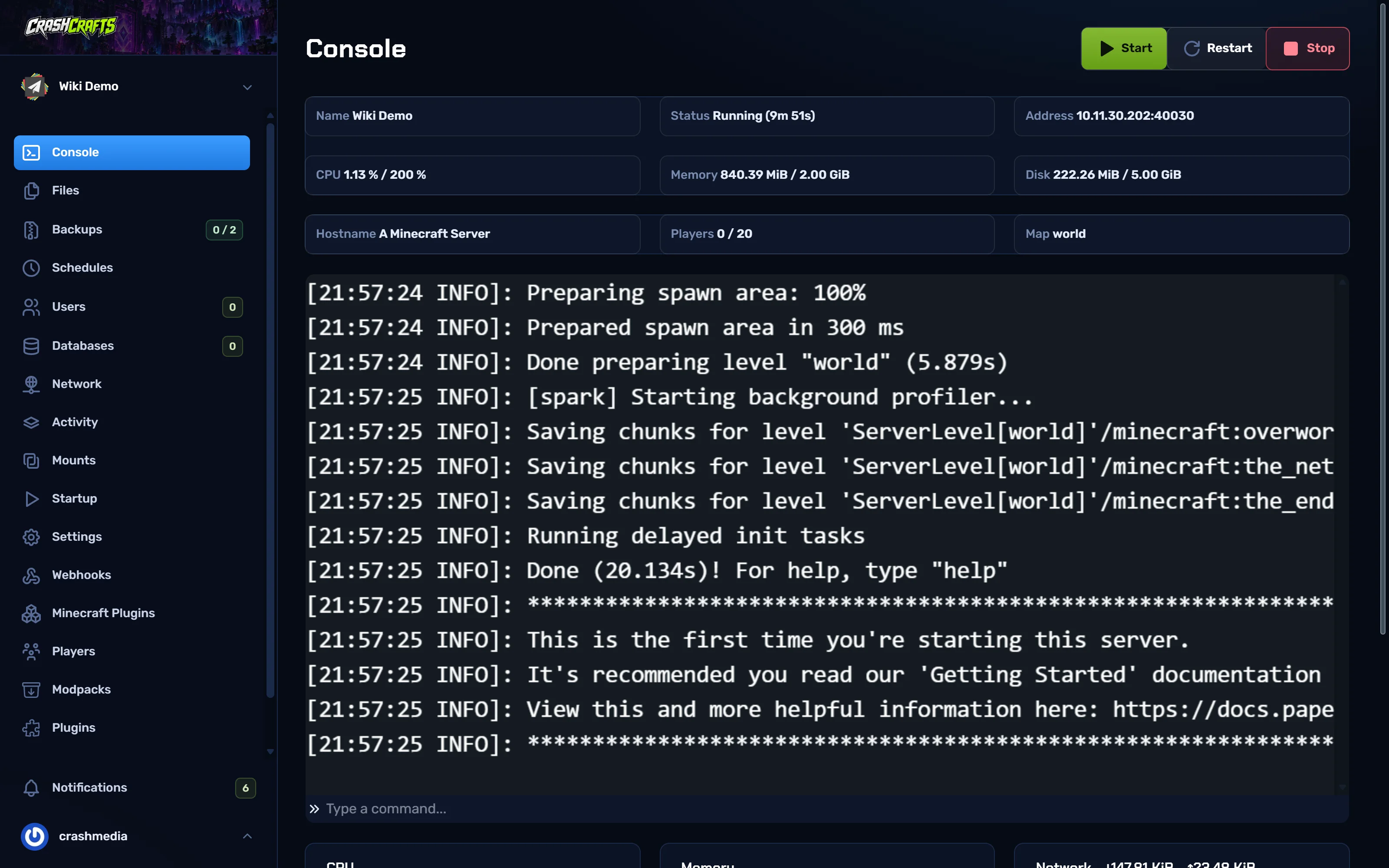
The boxes at the top
| Box | Meaning |
|---|---|
| Name | Your server's name in the panel. |
| Status | Offline, Starting, Running or Stopping. While starting or stopping it counts the seconds. |
| Address | The IP and port the server listens on. See Connect to your server for the address to give players. |
| CPU / Memory / Disk | Live usage against your plan. CPU is per core: 200 % means two full cores. |
| Hostname / Players / Map | Read from the running Minecraft server: its MOTD, players online and world name. |
Power buttons
| Button | What it does | When to use it |
|---|---|---|
| Start | Starts the server. | Any time it's offline. |
| Restart | Stops the server cleanly, then starts it again. | After installing plugins or changing configs. |
| Stop | Sends the stop command. Minecraft saves every world and shuts down. |
Before editing world files, or restoring a backup. |
| Kill | Ends the process immediately without saving. | Only when Stop has been stuck for a minute or more. |
Accept the Minecraft EULA (first start only)
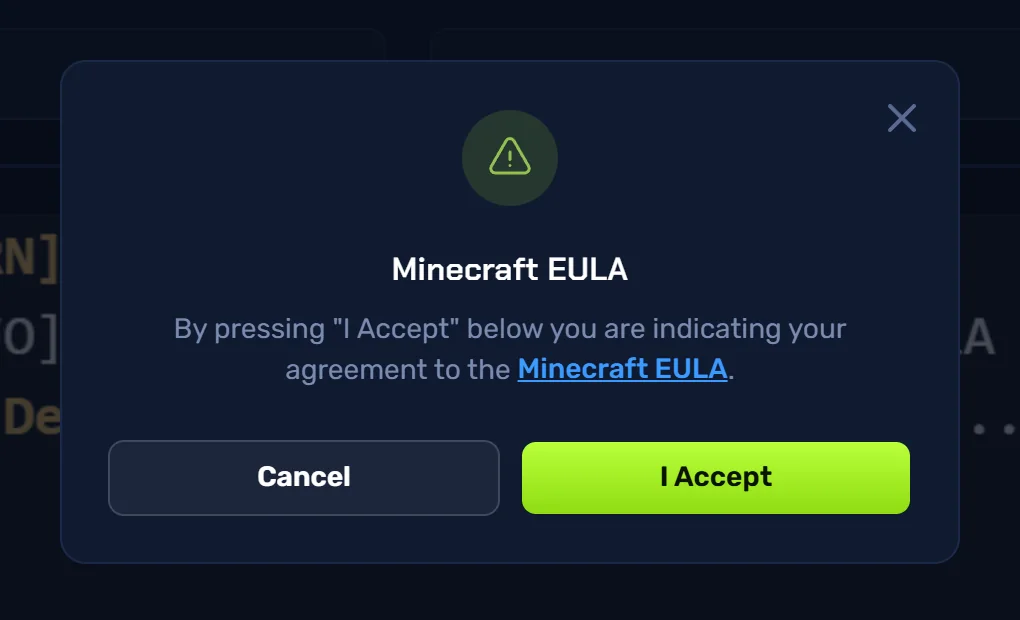
The first time a new server starts, Minecraft requires you to accept the Minecraft EULA. The panel shows a box. Read the EULA, then choose I Accept and the server starts. You only do this once per server.
Type a command
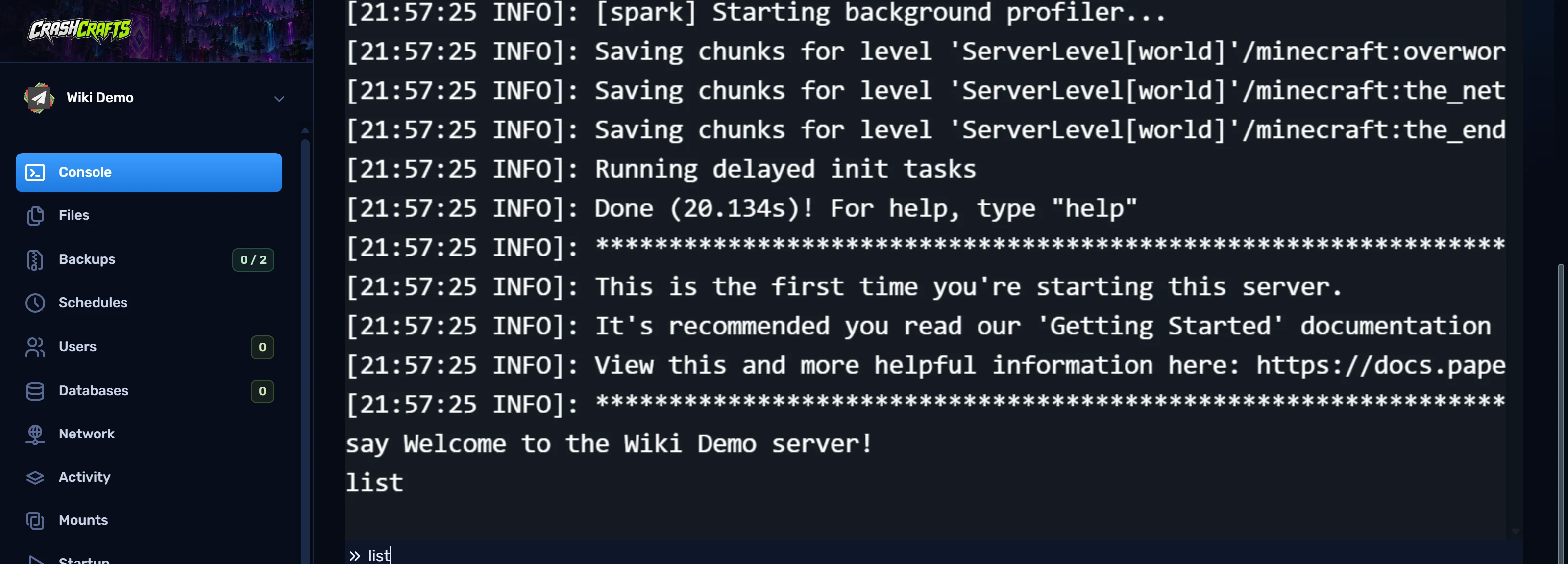
- Click the box at the bottom of the log that says Type a command....
- Type a server command without the leading
/, for examplelistorsay Hello everyone. - Press Enter. The command and its result appear in the log.
- Press the Up arrow to bring back previous commands.
Useful console commands
| Command | What it does |
|---|---|
list |
Shows who's online. |
say <message> |
Broadcasts a message to everyone in game. |
op <player> / deop <player> |
Gives or removes operator (admin) rights. |
whitelist add <player> |
Lets a player join when the whitelist is on. |
kick <player> <reason> |
Removes a player from the server. |
ban <player> <reason> / pardon <player> |
Bans or un-bans a player. |
save-all |
Saves all worlds now. |
time set day, weather clear |
Changes time or weather. |
gamerule <rule> <value> |
Changes a game rule, e.g. gamerule keepInventory true. |
tps (Paper/Purpur) |
Shows ticks per second. 20 is perfect. |
spark profiler start |
Starts a lag profile. See Find and fix lag. |
Reading the log
- INFO lines are normal.
- WARN lines are worth a look, but the server usually keeps running.
- ERROR lines, and long blocks starting with
java.lang...orException, are problems. The first ERROR after you changed something is usually the cause. See Fix a server that won't start. Done (15.149s)! For help, type "help"means the server finished starting and players can join.
The full log is also saved as logs/latest.log in Files. Older logs are kept as .log.gz files in the same folder.