Getting Started
Everything about your server is managed at game.crashcrafts.com. This guide shows you around.
Sign in
- Go to game.crashcrafts.com.
- Enter your username or email and password, then choose Sign in. If you set up a passkey, choose Authenticate using a passkey instead.
- Forgot your password? Choose Forgot password? on the sign-in page.
Your server list
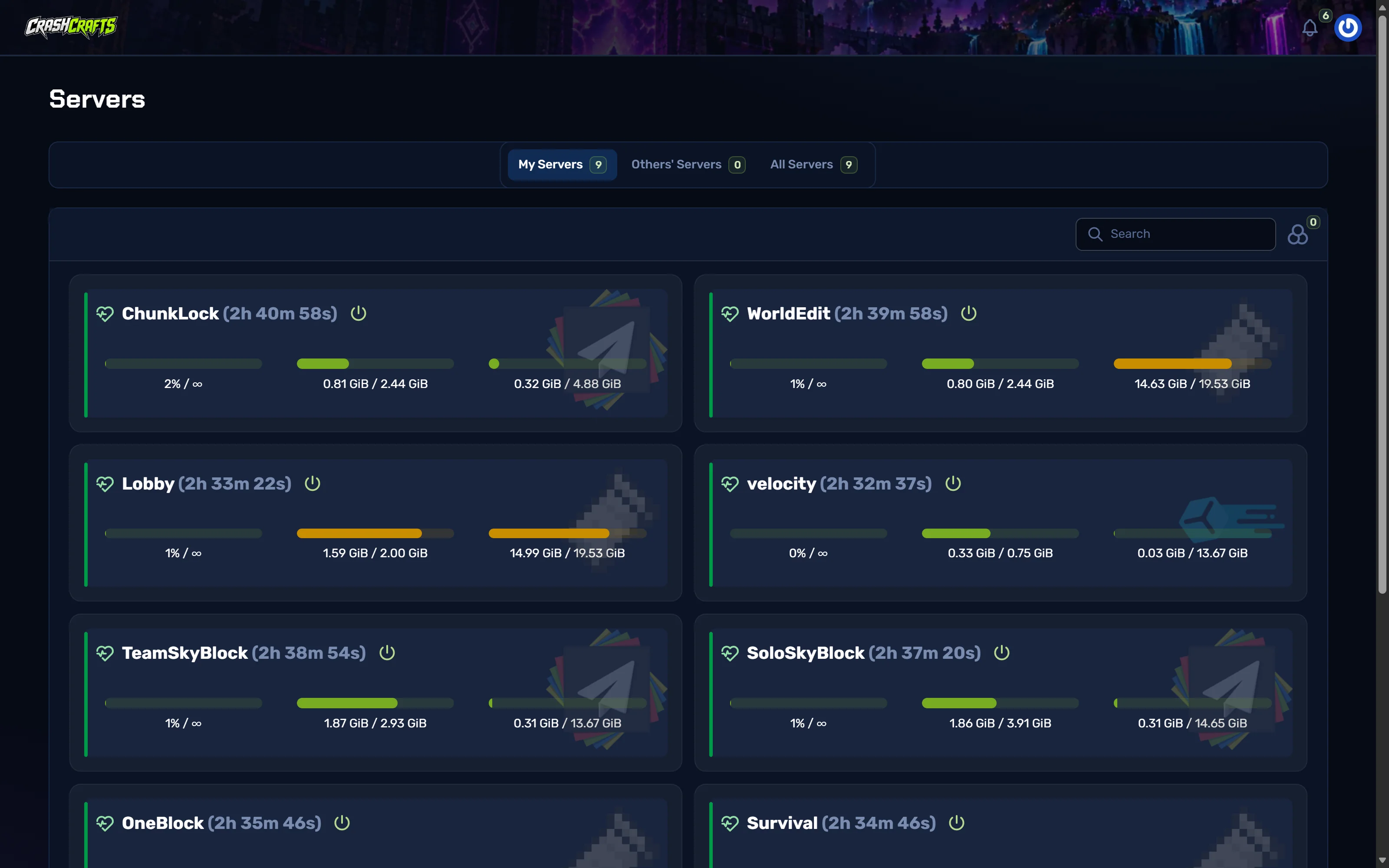
After you sign in you see your servers. Each card shows:
- CPU in use, against your limit (∞ means no limit);
- Memory in use, against your plan's memory;
- Disk used, against your plan's disk space.
The coloured bar on the left is the status: green for running, red for offline, orange while starting or stopping. Choose a server's name to open it.
The server menu
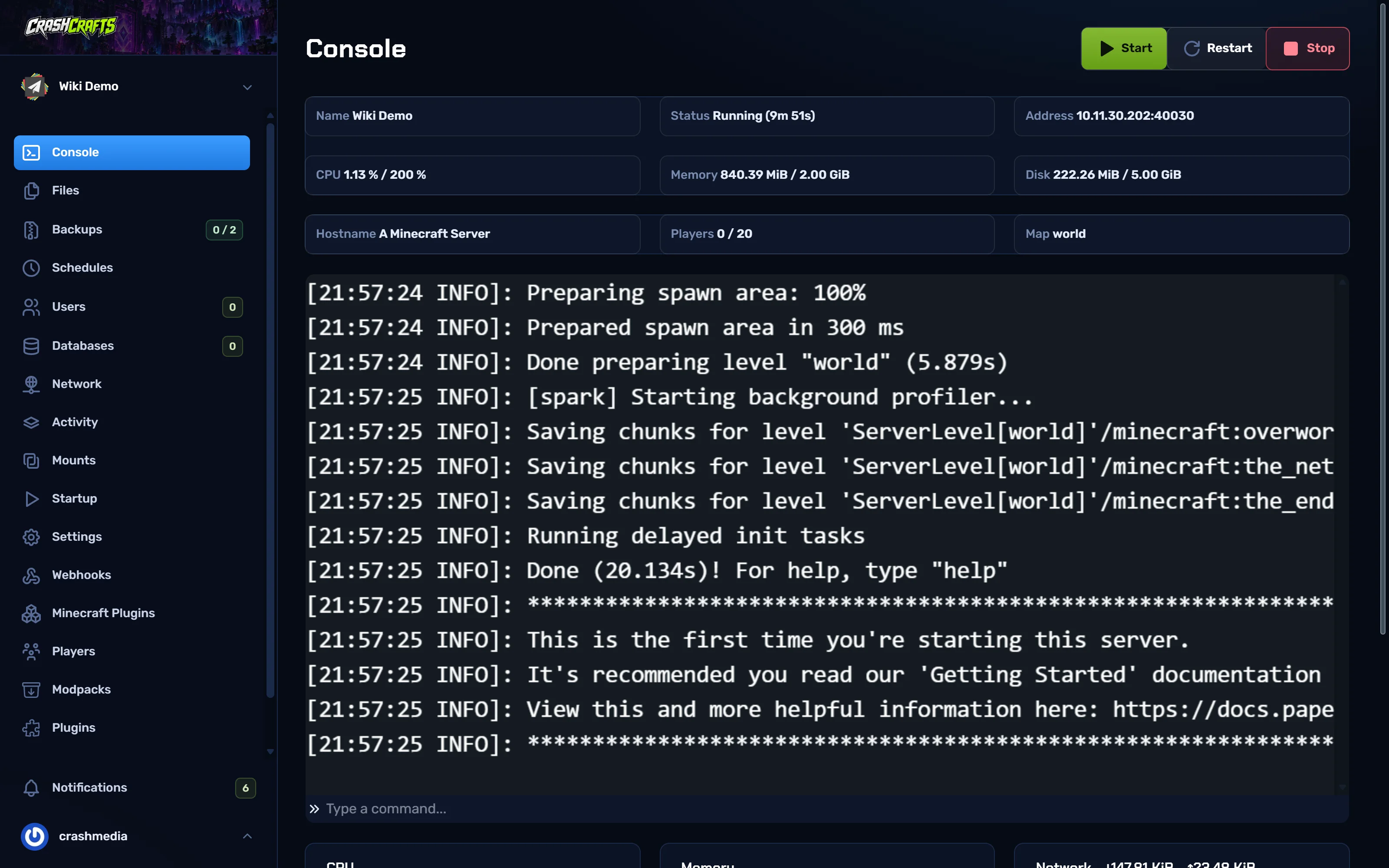
Inside a server, the menu on the left has every tool. Here's what each one does:
| Page | What it's for | Guide |
|---|---|---|
| Console | Live log, power buttons, typing commands, address and live usage | Console |
| Files | Browse, edit, upload, compress and extract files | Files |
| Backups | Make and restore backups. The badge shows used / allowed | Backups |
| Schedules | Automatic restarts, backups and commands | Schedules |
| Users | Give other people access to this server | Sub-users |
| Databases | MySQL databases for plugins that need one (if your plan includes them) | - |
| Network | Your server's address and port(s) | Connect |
| Activity | A log of who did what on the server, and when | - |
| Startup | Minecraft version, server jar and other startup settings | Change version |
| Settings | Rename the server, SFTP details, reinstall | Files |
| Minecraft Plugins | One-click plugins and mods from Modrinth | Plugins |
| Players | Who's online, the whitelist and ops | Players |
| Modpacks | One-click modpacks from Modrinth, CurseForge, FTB and ATLauncher | Mods & modpacks |
| Plugins | A second plugin/mod browser that searches CurseForge and Modrinth | Plugins |
Activity: see what changed
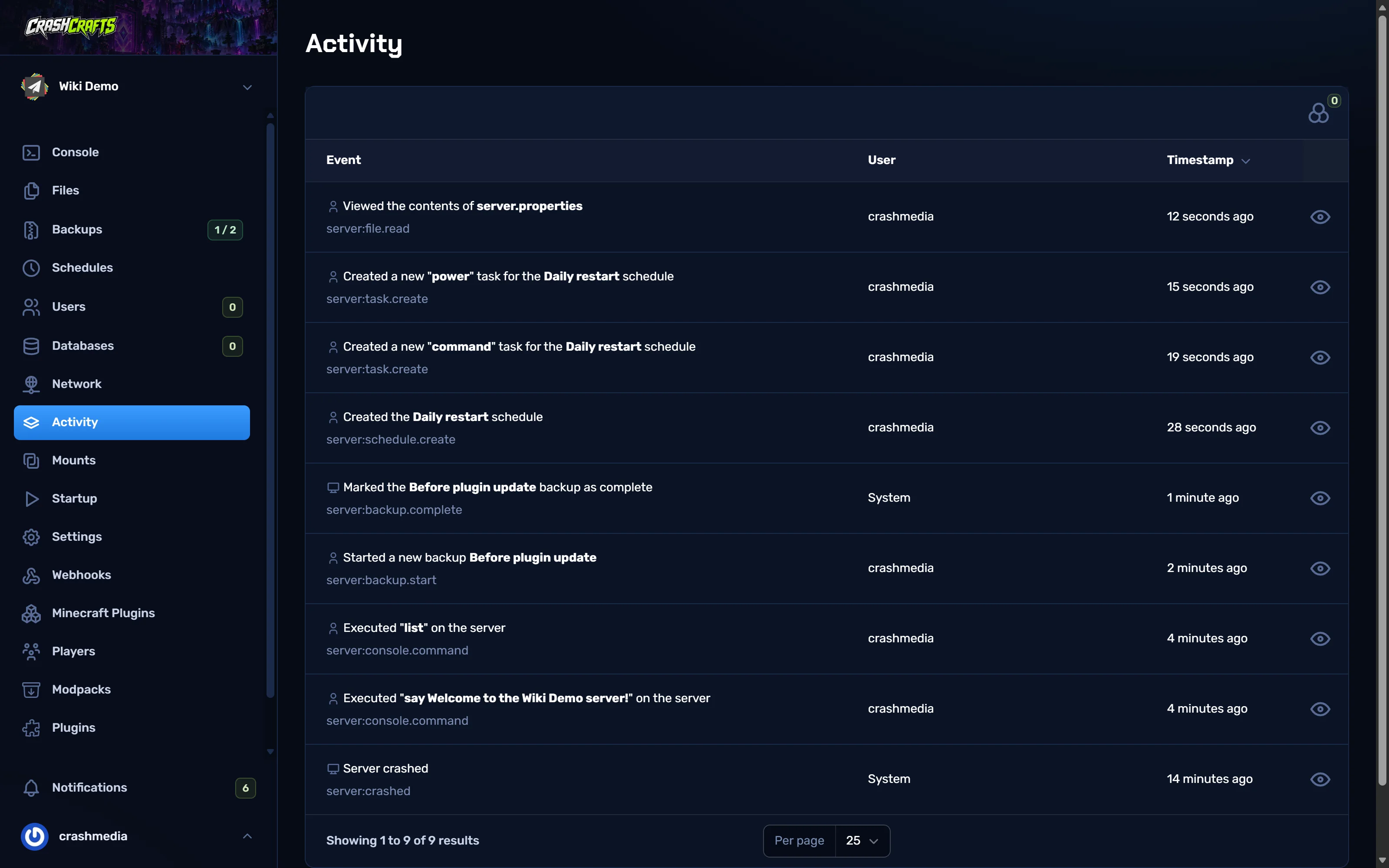
Activity lists every action on the server: starts and stops, console commands, file edits, backups. When something breaks, look here first to see what changed and who changed it.
Settings: your server's details
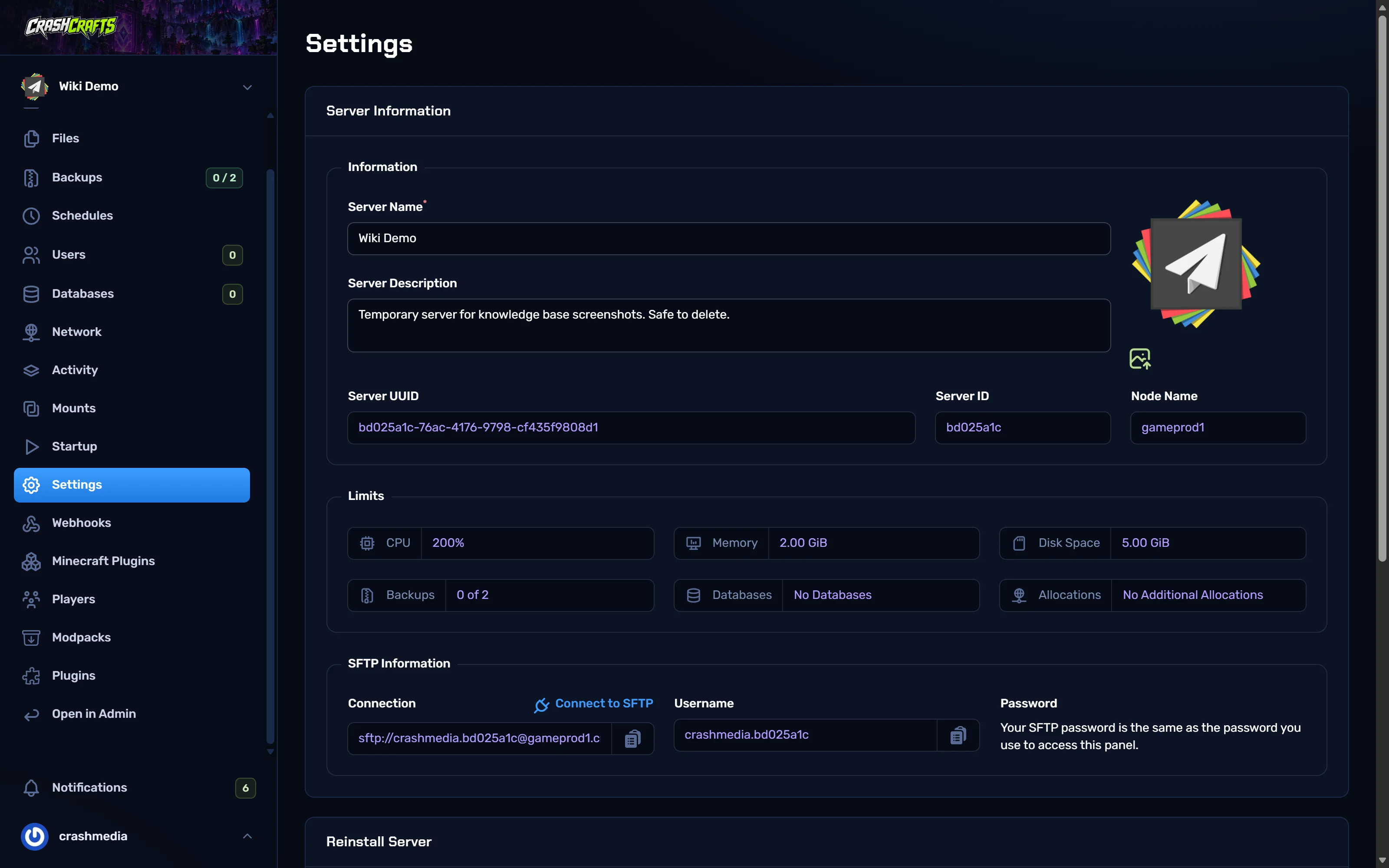
Settings shows your server's name, description, ID and limits (CPU, memory, disk, backups, databases and extra ports). Further down are your SFTP login and the Reinstall button.