
Getting Started
Join CrashCrafts Chat, our community chat for players, server owners and the CrashCrafts team. It runs on Matrix, an open chat network, and you use it in the free Element app on your phone, computer or web browser.
Time: about 10 minutes. You need: an email address you can open now.
What you need
| Setting | Value |
|---|---|
| Website | chat.crashcrafts.com |
| Server (homeserver) | chat.crashmedia.ca |
| Your chat ID | @yourname:chat.crashmedia.ca (you pick yourname) |
| Community space | #crashcrafts:chat.crashmedia.ca |
| Phone app | Element X (App Store / Google Play) |
| Computer app | Element desktop (element.io/download), or just use the website |
Create your account
Create the account on the website first. It works on any device, and the phone app can't always create accounts on community servers.
Open chat.crashcrafts.com in a browser and choose Create account.
Check the box at the top says Host account on chat.crashmedia.ca. If it says anything else, choose Edit and type
chat.crashmedia.ca.Fill in:
- Username: the name people will see in your ID, e.g.
dragonrider. Lower-case letters, numbers,.,_and-only. You can't change it later, so pick one you're happy with. - Password and Confirm password: a strong password you don't use anywhere else.
- Email: your real email. It's required, and it's how you reset a forgotten password.
- Username: the name people will see in your ID, e.g.
Choose Register.
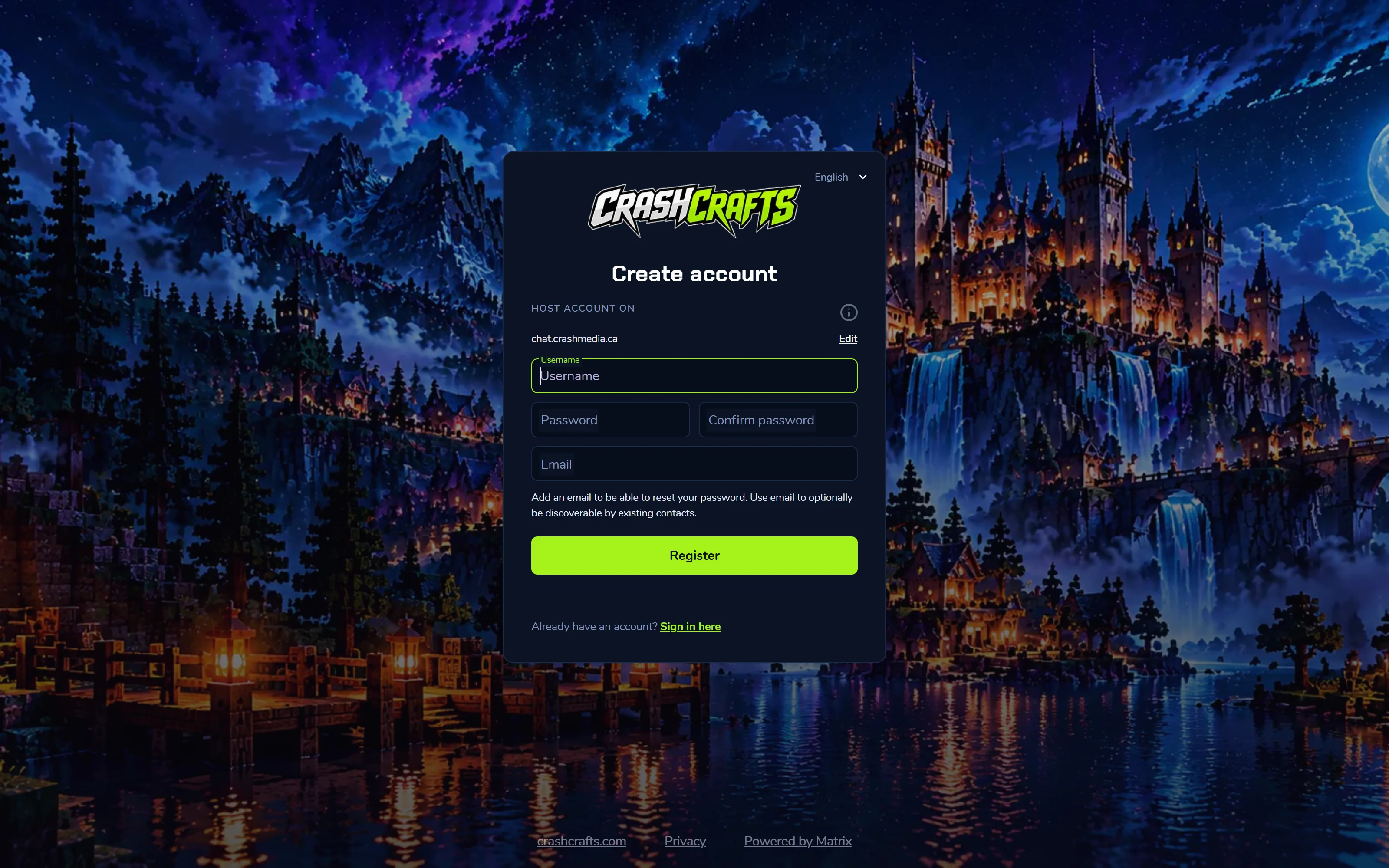
The CrashCrafts Chat Create account page, hosted on chat.crashmedia.ca Element shows Check your email to continue. Open the email titled [CrashCrafts Chat] Validate your email and select the link in it. Leave the chat tab open.
Go back to the chat tab. It carries on by itself and signs you in.
Save your recovery key
Messages in private chats are end-to-end encrypted. Your recovery key is what lets a new phone or computer read your old messages.
- Right after sign-in, Element offers to Set up recovery (or shows a banner saying so). Choose it.
- Choose Continue and Element shows a recovery key: groups of letters and numbers.
- Save it in a password manager, or write it down and keep it somewhere safe. Then Continue and confirm.
If you skip this, you can do it later: your avatar → All settings → Encryption → Set up recovery.
Join the CrashCrafts space
The CrashCrafts space holds the community rooms:
| Room | What it's for |
|---|---|
| General | Chat, find people to play with |
| Announcements | New servers, events and maintenance |
| Support | Help with your server, plugins, modpacks and the panel |
- While signed in on the website, open this link: Join the CrashCrafts space.
- Choose Join space.
- Join the rooms you want from the space's list (choose each room, then Join). Start with General and Announcements.
Joining on the website is enough. Every app you sign in to later shows the same rooms.
Please read the CrashCrafts rules before posting, and keep it friendly.
Set up the phone app (Element X)
- Install Element X from the App Store or Google Play. It's by Element and is free. (The older app, Element Classic, also works, but Element X is faster and is the one we support.)
- Open it and choose Sign in manually. Don't choose Create account: you already have one.
- On the server screen, choose Change account provider (or Other), type
chat.crashmedia.caand choose Continue. - Enter your username (just yourname, or the full
@yourname:chat.crashmedia.ca) and password, then Continue. - Element X asks you to confirm your identity so it can read your encrypted messages. Choose one:
- Use another device: open the chat website (or the desktop app) where you're already signed in, accept the request there, and check the emoji match on both screens.
- Enter recovery key: type the key you saved in step 2.
- Allow notifications when asked, so you hear about mentions and direct messages.
The CrashCrafts space and its rooms appear under Spaces (the space icon) or in your chat list.
Set up the computer app (optional)
You can keep using chat.crashcrafts.com in your browser. If you'd rather have an app:
Download Element for Windows, Mac or Linux from element.io/download and install it.
Open it and choose Sign in.
Next to Homeserver (or Account provider), choose Edit. Choose Other account provider, type
chat.crashmedia.caand choose Continue.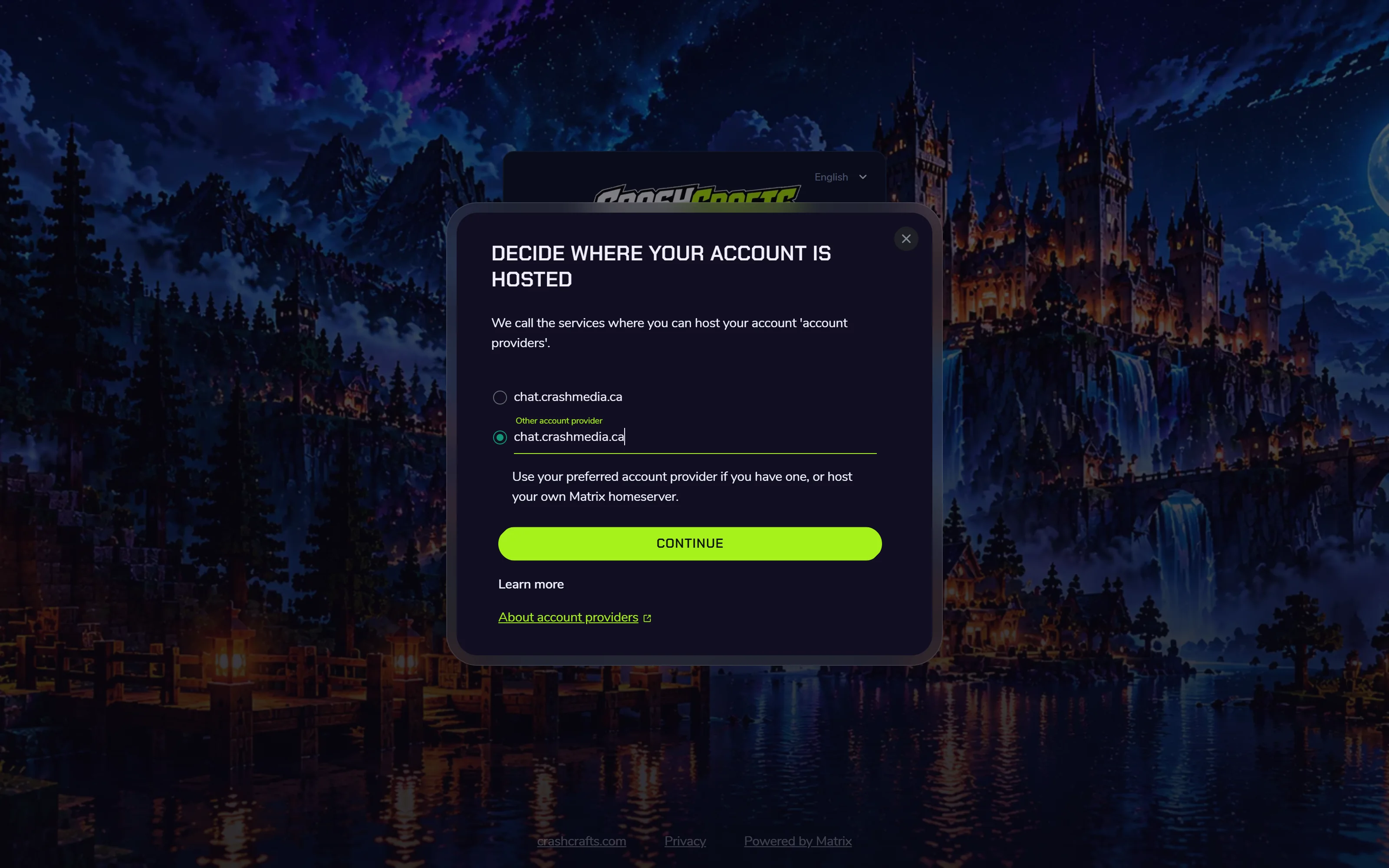
Choosing chat.crashmedia.ca as the account provider Enter your username and password and choose Sign in.
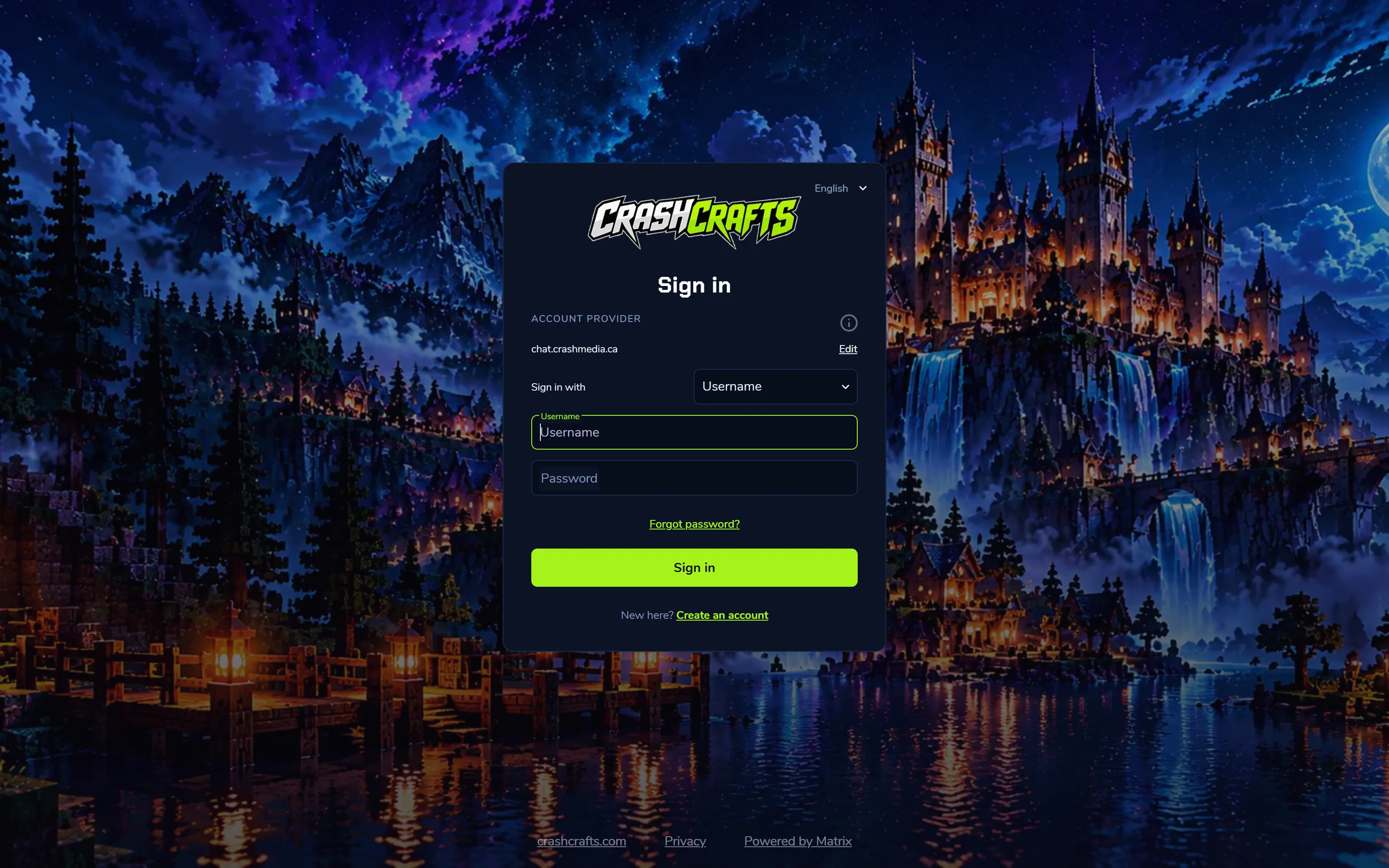
The Sign in page with chat.crashmedia.ca as the account provider Confirm your identity with another device or your recovery key, as in step 4.
Voice and video
Rooms and direct messages have voice and video call buttons at the top right. Allow the microphone and camera when asked. Calls work on the website, the desktop app and Element X.
Troubleshooting
- "Can't find this server" / "Invalid homeserver"
- Type the server exactly:
chat.crashmedia.ca. Nohttps://, nowww, and notmatrix.org.
- Type the server exactly:
- "Incorrect username and/or password"
- Use the username you registered, not your email address.
- Forgot your password: on the sign-in screen choose Forgot password? and use the email on your account.
- "Username is already taken"
- Someone has it already. Add something to make it yours, e.g.
dragonrider-ca.
- Someone has it already. Add something to make it yours, e.g.
- Messages say "Unable to decrypt" or show a padlock
- That device isn't confirmed yet. Go to Settings → Encryption (or the banner at the top) and confirm with another device or your recovery key.
- No notifications on your phone
- Allow notifications for Element X in your phone's settings.
- On Android, exclude Element X from battery optimisation.
- In the room, check the bell icon isn't set to Mute.
- Calls connect but nobody can hear each other
- Try mobile data instead of Wi-Fi. Some school, work and guest networks block calls.
- Still stuck?
- Post in the Support room if you can sign in, or contact us through crashcrafts.com.