Getting Started
Find your join address
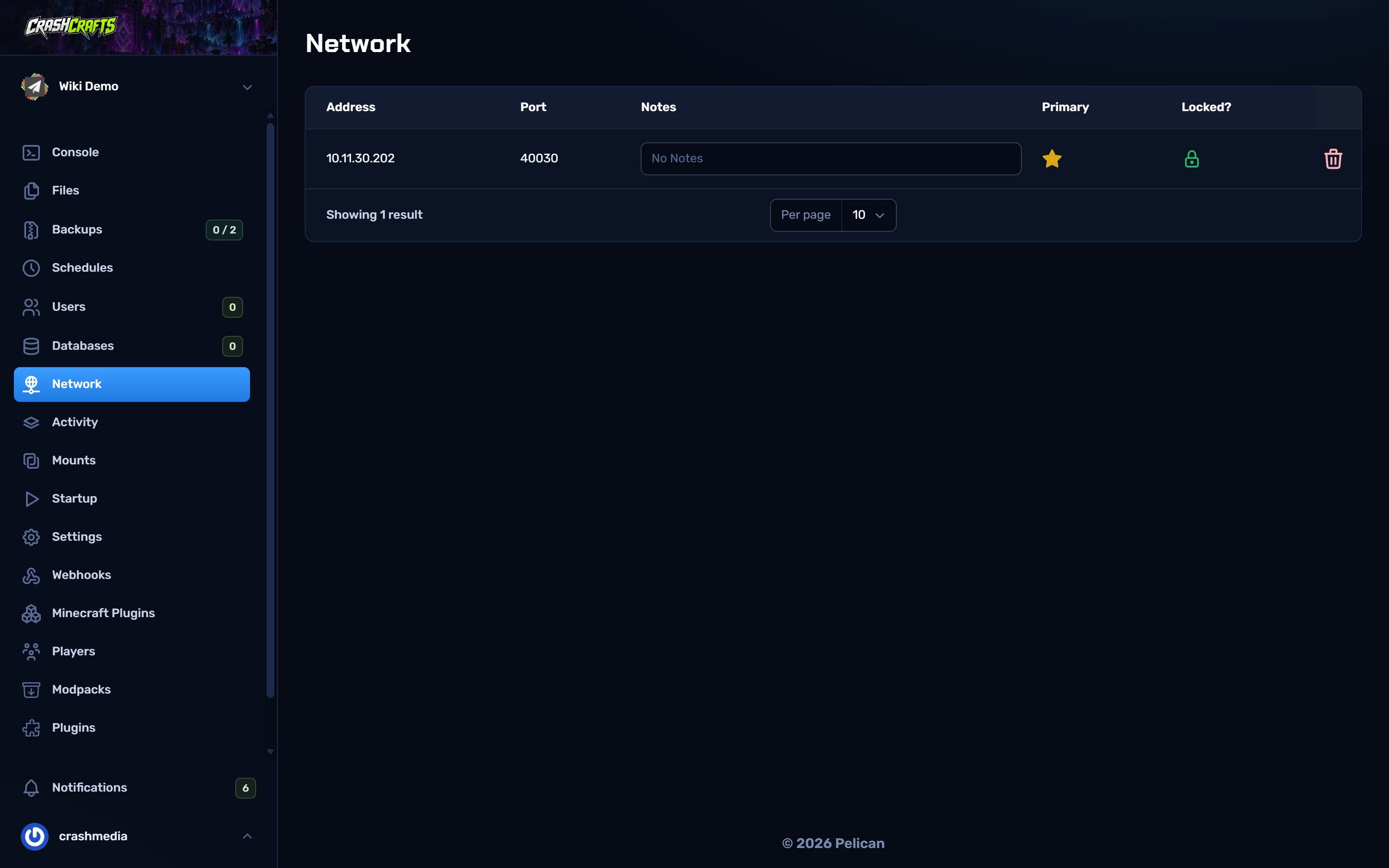
In the panel, open your server and go to Network (or look at Address on the Console page).
Note the Port, the number after the colon, for example
40030.Your join address is
gameprod1.crashcrafts.com:followed by your port. For example:gameprod1.crashcrafts.com:40030
Add the server in Minecraft (Java Edition)
- Open Minecraft and choose Multiplayer.
- Choose Add Server.
- Server Name: anything, e.g.
My CrashCrafts server. - Server Address: your join address, e.g.
gameprod1.crashcrafts.com:40030. - Choose Done, then double-click the server to join.
Your Minecraft version must match the server's version, unless the server runs ViaVersion. The server's version is shown on Minecraft Plugins and on Startup in the panel.
Bedrock players (phones, consoles, Windows 10/11 Bedrock)
Bedrock Edition can't join a Java server on its own. Add Geyser first: see Let Bedrock players join.
Can't connect?
| Message | What it means | Fix |
|---|---|---|
| Can't connect to server / Connection refused | The server is offline or still starting. | Check Status on the Console. Wait for Done (…)! For help, type "help". |
| Connection timed out | Wrong address or port. | Re-check the port on Network. Use gameprod1.crashcrafts.com, not the 10.x address. |
| Outdated client / Outdated server | Your Minecraft version doesn't match. | Use the server's version, or ask the owner to add ViaVersion. |
| You are not whitelisted on this server | The whitelist is on. | Ask an operator to run whitelist add <yourname>. |
| Failed to verify username | Minecraft's login servers couldn't verify you. | Restart Minecraft and the launcher, and sign in again. |
| This server requires you to connect with Velocity | This server is part of a network. | Join the network's main address instead (see Velocity network). |